Import statements
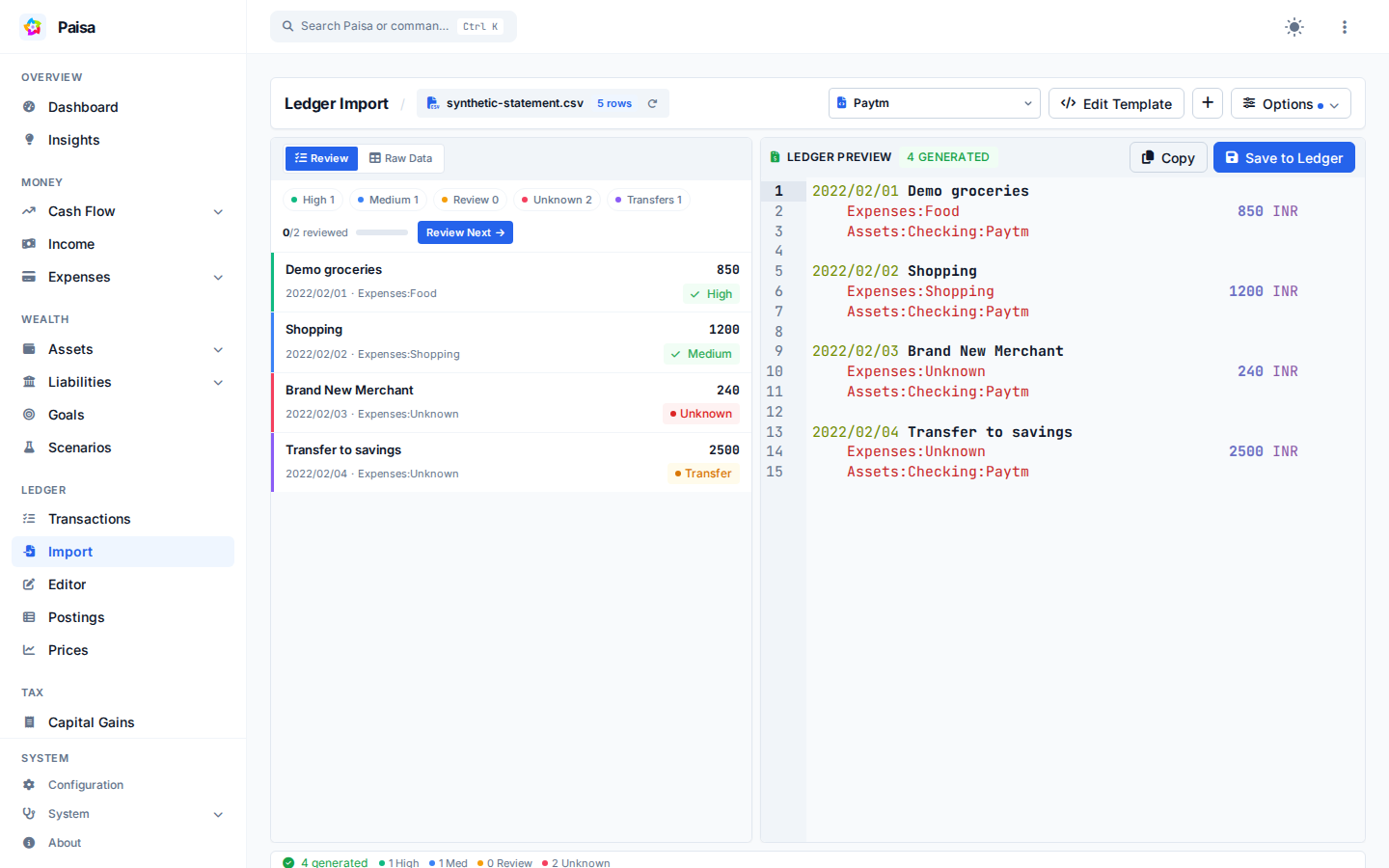
Import converts rows from CSV, TXT, XLS, XLSX, or PDF files into Ledger transactions. The page shows the source data, the generated journal, and the template that connects the two.
Review PDF imports carefully
PDF table detection is experimental and may split or misread rows. Always compare the preview with the original statement before saving.
Workflow
- Drop a statement into File Preview and check the detected rows.
- Choose a built-in template or adapt one in Template Editor.
- Review every entry in Ledger Preview, especially
Unknownaccounts. - Save only after the preview matches the statement.
Each row in the CSV file is converted to a transaction in the ledger. This conversion is controlled by the template.
Let's break this down. The first line is a conditional statement. It checks if the row has a date in the first column. You can refer any column using their alphabets. The second line constructs the transaction header. The third line constructs the first posting. The fourth line constructs the second posting.
Effectively a single row in the CSV file is converted to a single transaction like this.
The template is written in Handlebars. Paisa provides a few helper functions to make it easier to write the template.
Manage templates
Paisa ships with a few built-in templates. You can also create your own. To
create a new template, edit the template and click on the Save As button. User
defined custom templates are stored in the configuration file.
Tip
If you need help with a template, open an issue with a redacted sample. Remove names, account numbers, addresses, and transaction details first.
Template data
- ROW - This is the current row being processed. You can refer to any
column using their alphabets. For example,
ROW.Arefers to the first column,ROW.Brefers to the second column and so on. The current row index is available asROW.index.
Example
- SHEET - This is the entire sheet. It is an array of rows. You can refer a
specific cell using the following syntax
SHEET.5.A.
Example
[
{
"A": "Accountno:",
"B": "49493xxx003030",
"index": 0
},
{
"A": "Customer Name:",
"B": "MR John Doe",
"index": 1
},
{
"A": "Address:",
"B": "1234, ABC Street, XYZ City, 123456",
"index": 2
},
{
"A": "Transaction Details:",
"index": 3
},
{
"A": "Date",
"B": "Sr.No.",
"C": "Transaction Details",
"D": "Reward Point Header",
"E": "Intl.Amount",
"F": "Amount(in Rs)",
"G": "BillingAmountSign",
"index": 4
},
{
"A": "49493xxx003030",
"index": 5
},
{
  "A": "28/03/2023",
  "B": "7357680821",
  "C": "AMAZON HTTP://WWW.AM IN",
  "D": "12",
  "E": "0",
  "F": "249.00",
  "G": "",
  "index": 6
},
{
"A": "28/03/2023",
"B": "7357821997",
"C": "AMAZON HTTP://WWW.AM IN",
"D": "28",
"E": "0",
"F": "575.00",
"G": "",
"index": 7
}
]
Template helpers
eq(a: any, b: any): boolean
Checks if the two values are equal.
not(value: any): boolean
Negates the given value.
and(...args: any[]): boolean
Returns true if all the arguments are true.
or(...args: any[]): boolean
Returns true if any of the arguments are true.
gte(a: string | number, b: string | number): boolean
Checks if a is greater than or equal to b.
gt(a: string | number, b: string | number): boolean
Checks if a is greater than b.
lte(a: string | number, b: string | number): boolean
Checks if a is less than or equal to b.
lt(a: string | number, b: string | number): boolean
Checks if a is less than b.
negate(value: string | number): number
Negates the given value. For example, negate("123.45") will return -123.45
amount(str: string, {default?: string}): string
Converts the given string to a valid amount. If the string is blank, the default
value is used. Examples (0.9534) to -0.9534, ₹
1,234.56 to 1234.56
round(str: string, {precision?: number}): number
Rounds the given value to the given precision. If precision is not set, defaults
to 0
isDate(str: string, format: string): boolean
Checks if the given string is a valid date in the given format. Refer Day.js for the full list of supported formats.
predictAccount(...terms: string[], {prefix?: string}): string
Helps with prediction of account name to be used in a transaction. Let's say you
import your Credit Card bill, you would prefer the system to automatically
assign the account name for you. predictAccount acts like a search engine. It
will try to find a transaction that is similar to the current transaction. The
search requires input (referred as terms) and it will match transactions with
similar description and will pick the accounts from the top match.
If terms are not provided, the entire ROW will be used.
The prefix is optional and will be used to filter out matching accounts. If no
match is found, Unknown will be returned.
Prediction uses committed ledger history (not the current preview). Familiar
merchants with a clear account become a high-confidence match. New or split
history stays as Unknown or needs review. Optional source= is the other
posting account in the template and is used as extra context; templates do not
need to change. TF-IDF remains a weak fallback only.
Tip
Prediction will only work if you have similar transactions in ledger file. It usually means, first time you have to manually fix the Unknown account and then subsequent imports will work
isBlank(str: string): boolean
Checks if the given string is blank.
date(str: string, format: string): string
Parses the given string as a date in the given format and returns the date in
the format YYYY/MM/DD. Refer
Day.js
for the full list of supported formats.
findAbove(column: string, {regexp?: string}): string
Finds the first cell above the current row in the given column. If regexp is
provided, the search will continue till a match is found
findBelow(column: string, {regexp?: string}): string
Finds the first cell below the current row in the given column. If regexp is
provided, the search will continue till a match is found
acronym(str: string): string
Returns the acronym of the given string that is suitable to be used as a
commodity symbol. For example, UTI Nifty Next 50 Index Growth
Direct Plan will
be converted to UNNI
oneline(str: string): string
Collapses wrapped spreadsheet text onto one line. A newline between letters is
treated as a mid-word wrap (AC + ME becomes ACME); other whitespace
becomes a single space.
trim(str: string): string
Trims the given string.
replace(str: string, search: string, replace: string): string
Replace the given search string with the given replace string.
regexpTest(str: string, regexp: string): boolean
Tests the given string against the given regular expression.
regexpMatch(str: string, regexp: string, {group?: number}): string
Extract part of a string. Let's say you have
Axis Long Term
  Equity Growth Direct Plan
and you want to extract
Axis Long Term
  Equity
, you can use
{{regexpMatch ROW.C "(.*) Growth Direct Plan" group=1}} assuming
the string is in the column C. group is optional and defaults to 0.
textRange(fromColumn: string, toColumn: string, {separator?: number}): string
Extracts text from the given range of columns. The separator is optional and
defaults to " ".
toLowerCase(str: string): string
Converts the given string to lower case.
toUpperCase(str: string): string
Converts the given string to upper case.
capitalize(str: string): string
Capitalize the given string.
match(str: string, {[string]: string}): string
Let's say you are trying to import your Credit Card bill and you want map the
transaction to a specific expense account based on the description. You can use
the match helper to do that. The helper takes a string and a map of key value
pairs. The key is the account to be returned if the string matches the value.
The value must be a valid regular expression.
In case of no match null will be returned. You can combine this with or
helper to return a default account.